



What is Hyper-V Virtualization? Learn about Microsoft's virtualization technology
May 28, 2026Hyper-V virtualization is a virtualization technology developed by Microsoft, allowing the creation and management of multiple virtual machines on a single Windows server. Hyper-V helps businesses optimize hardware resources, increase flexibility, ensure security, and serves as an important platform for building private cloud and hybrid cloud in modern IT environments. Let's join Vcloudia to explore the contents presented below in more detail.
What is Hyper-V Virtualization?
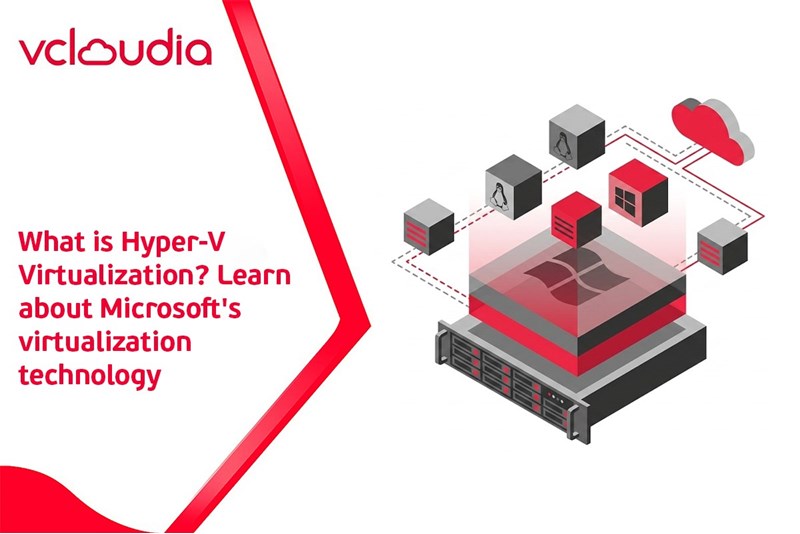
Hyper-V virtualization is a virtualization technology developed by Microsoft that allows you to create and manage virtual machines (VMs) right on a Windows-running computer or server. Hyper-V operates as a hypervisor that can divide hardware resources (CPU, RAM, disk, etc.) so that multiple operating systems run independently on a single physical machine together.
In modern infrastructure models, Hyper-V is often used to build a private cloud within the enterprise. From this platform, the system can expand or connect to a Virtual Private Cloud on cloud platforms such as Azure.
Outstanding features of Hyper-V:
- Pre-installed on Windows 10/11 Pro, Enterprise, and Windows Server versions.
- Allows creating, running, and managing multiple virtual machines on the same device.
- Supports multiple operating systems such as Windows, Linux, FreeBSD...
- Increases flexibility and security when deploying IT infrastructure.
- Compatible with management tools such as Hyper-V Manager, PowerShell, and Azure.
What components does the structure of Hyper-V consist of?
Hyper-V virtualization is built according to a layered architecture, helping the system operate stably, securely, and easily scale. Basically, the structure of Hyper-V consists of three main components along with some auxiliary components that support managing and operating virtual machines.
Core components
- Physical server and management partition (Root Partition): This is the physical server with the Windows operating system installed and Hyper-V enabled. The Root Partition has direct access to hardware such as CPU, RAM, disk, and network. This partition is responsible for managing the system, creating, and coordinating resources for virtual machines.
- Hypervisor: The hypervisor is the core layer of Hyper-V, sitting directly on the physical hardware. This component does not run applications but only performs the task of separating and allocating resources like CPU and memory to partitions, ensuring that virtual machines operate independently and without conflict.
- Virtual machines and child partitions (Child Partitions): Each virtual machine is created in a separate child partition. In these partitions, users can install an operating system such as Windows or Linux. Child partitions do not access hardware directly but use resources through virtual devices provided by Hyper-V.
Auxiliary components
- Hyper-V management tools: Hyper-V provides multiple tools for administering virtual machines such as Hyper-V Manager, PowerShell, and Windows Admin Center. These tools allow creating, configuring, monitoring, and managing virtual machines on the familiar interface of Windows.
- Virtual hard disks (VHD/VHDX): Each virtual machine uses one or more virtual hard disks to store the operating system and data. Hyper-V prioritizes the VHDX format due to its capability to support large capacities, high stability, and better performance compared to traditional VHD.
- Virtual network (Virtual Switch): The Virtual Switch is the component that helps connect virtual machines to each other and to external networks. Hyper-V allows creating various types of virtual switches to control traffic, separate networks, and enhance security for the virtualization system.
Operating mechanism of Hyper-V
Hyper-V operates through the hypervisor to control the use of the physical server's hardware resources. When the system boots up, the Root Partition is created first and plays the role of coordinating the entire virtualization environment.
The virtual machines in the child partitions send resource requests to the hypervisor. The hypervisor will use a scheduling mechanism (scheduler) to allocate CPU, memory, and other resources reasonably, helping multiple virtual machines run simultaneously while still ensuring performance and stability.
Thanks to this model, Hyper-V ensures isolation among virtual machines, limits mutual influence, and maintains performance even when the system operates with multiple workloads at the same time.
Outstanding features of Hyper-V virtualization
- Live Migration: Transferring virtual machines between physical servers without disrupting services, ideal for maintenance or load balancing.
- Dynamic Memory: Automatically adjusting RAM for virtual machines according to demand, optimizing resource usage.
- Hyper-V Replica: Synchronizing virtual machines to another location for quick recovery during incidents (Disaster Recovery).
- Clustering & Load Balancing: Enhancing High Availability for critical applications.
- Nested Virtualization: Running Hyper-V inside a virtual machine, useful for development and testing environments.
- Enhanced graphics support (RemoteFX): Providing a better graphics and audio experience, supporting applications that require graphical resources.
- Strong security: Integrating features like Secure Boot and Shielded VMs to protect virtual machines and data.
- Comprehensive management: Deeply integrated with tools like PowerShell and Windows Admin Center for automation and centralized management.
- Support for multiple operating systems: Allowing Windows, Linux, and other operating systems to run on the same physical hardware.
Pros and cons of Hyper-V virtualization
According to Faddom, Hyper-V currently accounts for about 10–12% of the global virtualization market share and is an increasingly popular choice for businesses using Windows due to its economical nature. Although highly rated thanks to its reasonable cost, good integration capability with the Microsoft ecosystem, and high stability, this platform still has certain limitations when compared to other virtualization solutions
Comparison between Hyper-V and VMware virtualization
In the field of server virtualization, Hyper-V and VMware are the two most popular and widely used platforms today. Each solution has its own strengths, suitable for different infrastructure needs and scales.
Guide on how to enable and disable Hyper-V on Windows 11
How to enable Hyper-V on Windows 10 and Windows 11
To use Hyper-V on Windows 10 and Windows 11, your computer needs to support virtualization technology (Intel VT-x or AMD-V) and have Virtualization Technology enabled in the BIOS/UEFI. After meeting the requirements, you can enable Hyper-V directly in Windows via Windows Features without the need to install additional external software.
- Step 1: Open Control Panel, select Programs, then click on Turn Windows features on or off.
- Step 2: In the Windows features list, find and check Hyper-V, while ensuring that the two components Hyper-V Platform and Hyper-V Management Tools are also fully selected.
- Step 3: Click OK to confirm, wait for Windows to install the necessary components, and then restart the machine to complete the process of enabling Hyper-V.
How to disable Hyper-V on Windows 10 and Windows 11
While using Hyper-V on Windows 10 or Hyper-V on Windows 11, there are situations where you need to disable Hyper-V to avoid conflicts with other virtualization software such as VMware Workstation, VirtualBox, or Android emulators. Disabling Hyper-V virtualization can be done directly in Windows through Windows Features without needing advanced commands.
- Step 1: Open Control Panel, select Programs, then click Turn Windows features on or off.
- Step 2: In the Windows features list, uncheck Hyper-V. To ensure that Hyper-V on Windows 11 or Windows 10 is completely disabled, you should additionally uncheck:
+ Virtual Machine Platform
+ Windows Hypervisor Platform
- Step 3: Click OK, wait for the system to apply the changes, and restart the machine to complete the process of disabling Hyper-V.
Troubleshooting when the Hyper-V virtualization service is not disabled
In some cases, the system still reports an error or other software cannot run because the Hyper-V virtualization service is not completely disabled. When encountering this situation, you can check and troubleshoot as follows:
- Step 1: Press Windows + R, type msinfo32, and press Enter to open System Information.
- Step 2: Perform a system information check. If the line “A hypervisor has been detected” still appears, it means Hyper-V is still operating in the background on Hyper-V Windows 10 or Hyper-V Windows 11.
- Step 3: Go back to Turn Windows features on or off and recheck the options. Ensure that Hyper-V, Virtual Machine Platform, and Windows Hypervisor Platform have all been unchecked, and then restart the machine.
Practical applications of Hyper-V virtualization technology in enterprises
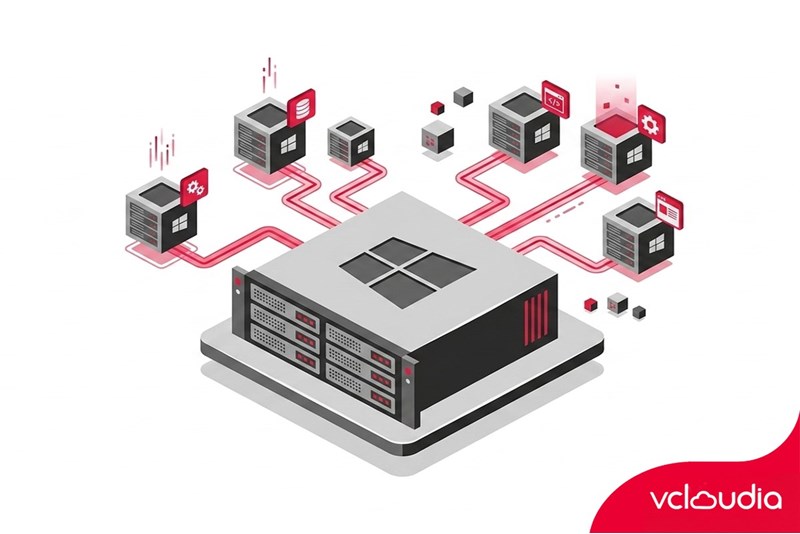
Many enterprises today have deployed Hyper-V due to its capability to optimize hardware performance and save costs. According to Zmanda, up to 48% of large enterprises and 29% of medium enterprises are using Hyper-V as their primary virtualization solution.
Server consolidation and cost savings
Hyper-V virtualization supports robust server consolidation. Running multiple VMs on the same host helps improve the hardware resource utilization factor, increasing the ROI for server investments. Thanks to being built into Windows Server Datacenter, enterprises using Windows Server Datacenter can run from dozens to thousands of VMs without incurring additional hypervisor license costs
Deploying flexible development and testing environments
Hyper-V is particularly useful in quickly creating development and testing (Dev/Test) environments. Enterprises can instantly spin up new VMs to serve projects or test software without waiting to purchase new hardware.
Backup, disaster recovery, and ensuring high availability
Hyper-V provides a full range of backup and disaster recovery solutions for enterprises. Each VM on Hyper-V can be backed up directly while running thanks to the Export and Volume Shadow Copy features, allowing backups without shutting down the virtual machine.
The Hyper-V Replica feature allows cloning virtual machines to another site, synchronizing data between two different systems, ensuring a backup copy is available when needed. In the event of a physical server failure, Failover Clustering and Live Migration allow automatically or quickly transferring VMs to another server with almost no service interruption
Centralized management and professional integration
For enterprises with large-scale virtualization systems, centralized management is very important. Hyper-V integrates with professional management tools to serve this purpose. For example, Windows Admin Center provides a modern web interface to monitor and configure Hyper-V/HCI (Azure Stack HCI) clusters, track performance, and resolve issues remotely.
System Center Virtual Machine Manager (SCVMM) allows coordinating, automating deployment, and moving VMs back and forth across multiple Hyper-V hosts. Thanks to SCVMM and Windows Admin Center, administrators can centrally manage all VMs in the datacenter from just a single console.
Conclusion
Hyper-V virtualization is a stable, reasonably priced virtualization solution suitable for enterprises currently using the Windows ecosystem. This is a suitable platform for building an on-premises private cloud or acting as a stepping stone for a long-term hybrid cloud strategy.
Vcloudia Cloud Server – The Cloud You Can Count On
If you're concerned about the potential limitations of Cloud Servers, Cloud server by Vcloudia is a reliable solution for businesses of all sizes. With a modern infrastructure and comprehensive customer support, Vcloudia delivers a cloud experience with:
- Powerful connectivity to ensure stable 24/7 access
- Advanced security standards, compliant with international certifications such as ISO 27001:2013, ISO 20000:2018, ISO 9001:2015
- Flexible pricing packages tailored to your specific business needs
- Expert technical support, making migration and system deployment fast, safe, and compatible
Contact information:
- Hotline: +855 888 55 66 08 (free of charge)
- Fanpage: https://www.facebook.com/vcloudia/
- Website: https://vcloudia.com
Related news
What is Cloud Analytics? Benefits and cloud data analytics tools
Cloud Analytics is an analytical model in which data is processed and analyzed directly on cloud infrastructure, combining BI and AI/ML tools to generate insights without needing to deploy an on-premise analytics system. As a result, businesses reduce operating costs, increase analysis speed, and make data-driven decisions in real-time.
What is Cloud Lifecycle? The main stages of cloud lifecycle management
The cloud lifecycle describes the entire cycle of managing an application, service, or data on a cloud computing environment. Clearly managing the cloud computing lifecycle helps businesses deploy systems methodically, limit resource waste, and improve long-term operational efficiency.
What is virtual machine migration? Benefits, forms, and migration solutions
Virtual machine migration is an important solution that helps businesses optimize their IT infrastructure, ensuring readiness and flexibility when operating systems in on-premise and cloud environments. The following article by Vcloudia will help you clearly understand the concept, forms of virtual machine migration, benefits, challenges, as well as practical applications in modern enterprises.
What is a tower server? How to choose a tower server for businesses
A tower server is an independent server with a vertical design similar to a PC but optimized for continuous operation, centralized storage, running internal applications, and deploying virtualization. With reasonable costs, flexible upgrade capabilities, and easy management, tower servers are a popular choice for small and medium-sized enterprises.
Detailed step-by-step guide to checking cloud server bandwidth
Checking Cloud Server bandwidth helps administrators, DevOps, and VPS users ensure network transmission performance, detect bottlenecks, and optimize infrastructure costs. Vcloudia will provide detailed instructions on how to check using different tools in the article below.
What is cloud bursting? Exploring the mechanism, operation, and deployment
Cloud bursting is a technique that allows an internal system to automatically scale to the public cloud when demand surges, helping to maintain performance without the need to invest in additional physical servers.
Applications of Cloud Computing in the Healthcare Industry
The application of cloud computing in healthcare is ushering in a new era of improved service quality, optimized hospital operations, and comprehensive digital transformation across the medical sector. This is no longer a distant trend; it has become an essential component of the technological revolution in healthcare.
Can Cloud Servers Fully Replace Physical Servers? A Practical Analysis for Businesses
In today’s era of digital transformation, businesses are constantly seeking ways to optimize their technology infrastructure to improve operational efficiency. One of the most frequently asked questions is: “Can Cloud Servers completely replace physical servers?”
Cloud Server vs VPC: Which Solution Should Startups Choose to Optimize Cost and Performance?
Should a startup choose Cloud Server or VPC? This is a common question many founders and technology managers face when building infrastructure for their new businesses. The right choice not only helps optimize costs but also ensures stable performance and flexible scalability when needed.